教程
我想着自己也可以弄一个因为GitHub的域名有点长而且不好听就自己买了一个,
但是文件都上传成功了就是访问不了
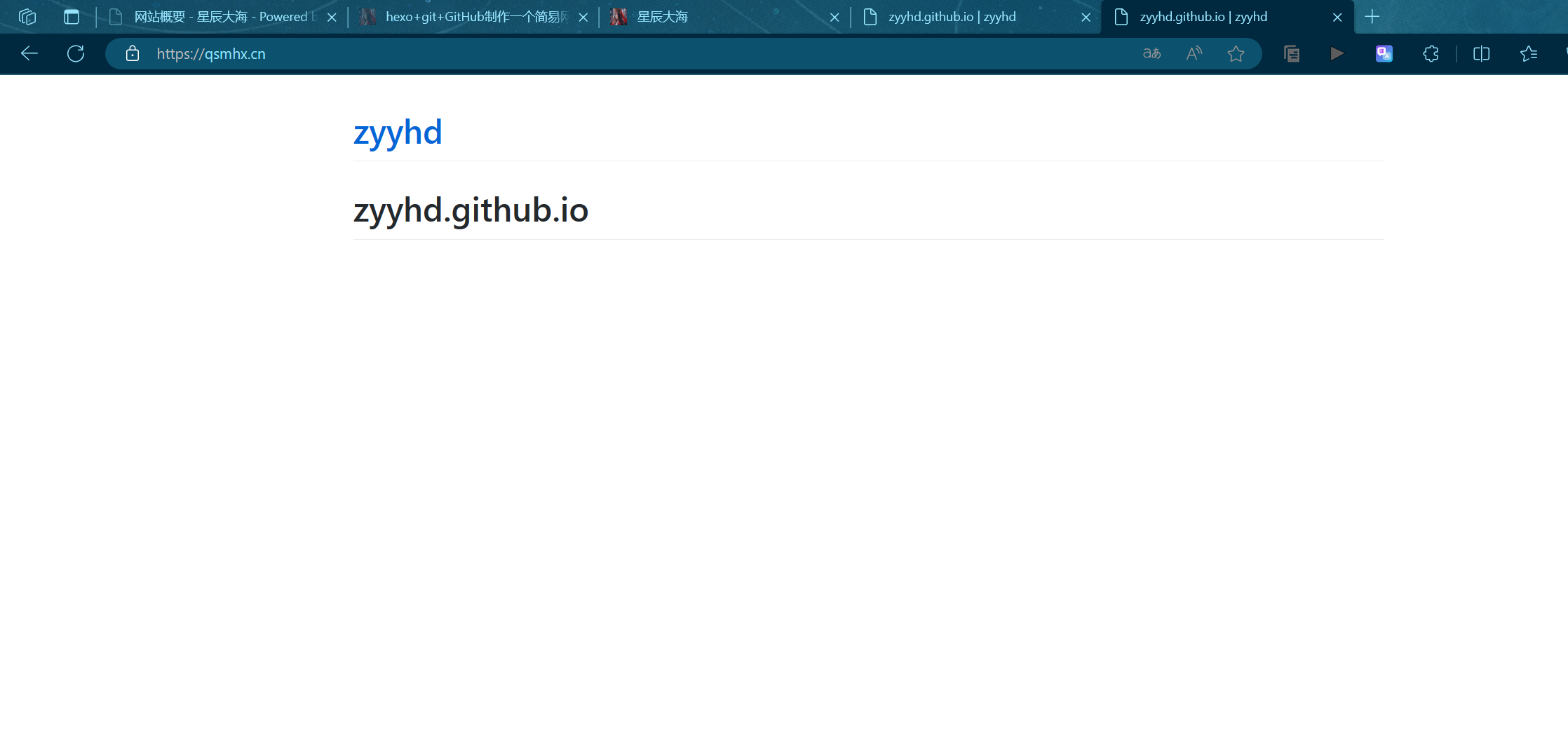
后来发现是主分支和副分支有问题就是main和master
注意 :一定要看清楚和修改分支不然就会有问题]]>
注意 :一定要看清楚和修改分支不然就会有问题]]>
# electric_clock
# see https://blog.anheyu.com/posts/fc18.html
electric_clock:
  enable: true # 开关
  priority: 5 #过滤器优先权
  enable_page: all # 应用页面
  exclude:
  # - /posts/
  # - /about/
  layout: # 挂载容器类型
    type: class
    name: sticky_layout
    index: 0
  loading: https://cdn.cbd.int/hexo-butterfly-clock-anzhiyu/lib/loading.gif #加载动画自定义
  clock_css: https://cdn.cbd.int/hexo-butterfly-clock-anzhiyu/lib/clock.min.css
  clock_js: https://cdn.cbd.int/hexo-butterfly-clock-anzhiyu/lib/clock.min.js
  ip_api: https://widget.qweather.net/simple/static/js/he-simple-common.js?v=2.0
  qweather_key: # 和风天气key
  gaud_map_key: # 高得地图web服务key
  default_rectangle: false # 开启后将一直显示rectangle位置的天气,否则将获取访问者的地理位置与天气
  rectangle: 112.982279,28.19409 # 获取访问者位置失败时会显示该位置的天气,同时该位置为开启default_rectangle后的位置
然后注意要对好格式不然就要像我一下像一个无头苍蝇一样到处找最重要的还是
qweather_key: # 和风天气key
gaud_map_key: # 高得地图web服务key
这两个一定要配置不然也显示不了
具体教程还是看https://blog.anheyu.com/posts/fc18.html
写的很详细我这里就不多说了
最后hexo s或 hexo clean && hexo g && hexo s就行
样式
前言
近些年来很多用户都喜欢使用 GitHub 来搭建 Hexo 静态博客网站,其最吸引人的莫过于完全免费使用,并且非常稳定。
虽然搭建时比较麻烦,有点折腾,但是配置完成后,基本不需要操心维护的事,甚至放了几年都忘记了,打开来看文章依然还在。
由于博主比较懒所以可能大部分都是参考别人的文章
我这里偷懒一下哈哈这个博主写的比较详细
https://zhuanlan.zhihu.com/p/443527549
安装完成之后打开git hexo v 一下就会显示版本号说明安装成功了![Y0T<code>Q0R1NBH1FEN__]O</code>UTW.png](/usr/uploads/2024/05/3550106947.png "Y0T<code>Q0R1NBH1FEN__]O</code>UTW.png")
注册一个GitHub账号可以看看这个博主的文章
https://blog.csdn.net/m0_67906358/article/details/128808210
然后连接git GitHub可以看看这篇文章
https://zhuanlan.zhihu.com/p/370635512
之后就可以开始部署hexo了
https://go2think.com/build-blog-with-hexo-on-github-pages/
最后直接hexo s就可以了
然后就不要动了CTRL+C会停止运行可以选中然后右键有了copy复制打开就行


我是加了butterfly主题感兴趣的可以去搜一下还是一个比较好的主题
基本上全部都部署完成了有不动的可以加我p 备注一下什么问题我可以帮你看一下当然能自己解决更好哈哈
本期内容就到此结束了下期再见!
如有侵权请告诉我,我立马改正!

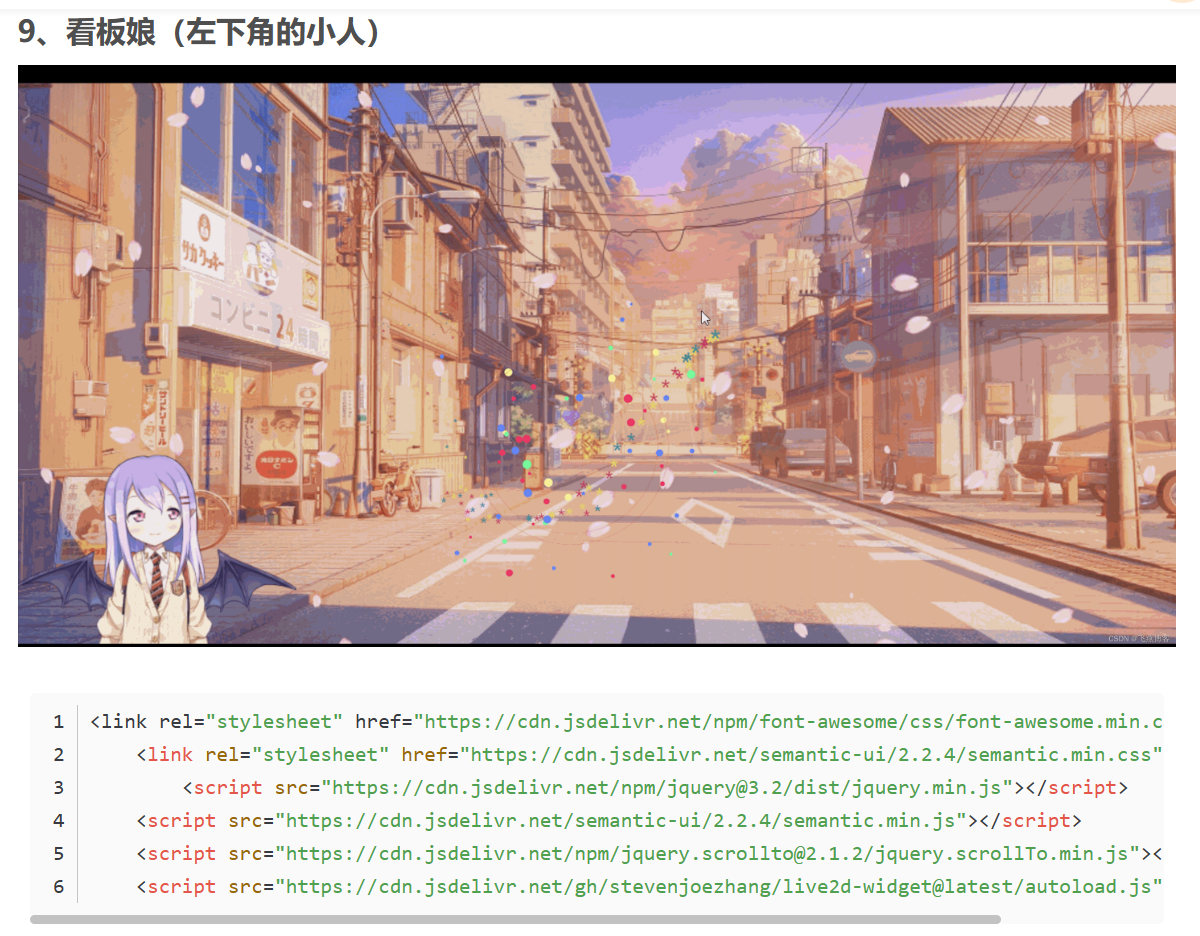
他是直接添加在PHP里面但是有时候可能加载不出来要耐心等待一下因为我弄这个搞了两天才出来的有时候不太稳定
https://www.cnblogs.com/pumpkinhlk/p/15410970.html
https://www.cnblogs.com/eve-d/p/15683541.html
第二个是在typecho里的直接修改外观改自定义CSS样式和自定义body标签末尾位置内容,自定义Footer内容可加可不加
CSS代码:
*{
transition: all 0.4s;
}
margin: 0 auto;
width: 80%;/原始65/
min-width: 980px;/页面顶部的宽度/
">rgba(245, 245, 245, 0.7);
padding: 30px;
margin-top: 50px;
margin-bottom: 50px;
box-shadow: 0 2px 6px rgba(100, 100, 100, 0.3);
}
body {
background-image: url("http://ww4.sinaimg.cn/large/637d0877gw1exlma5gj0wj21hc0u04p6.jpg");
background: rgba(12, 100, 129, 1) url('http://images.cnblogs.com/cnblogs_com/Penn000/1013849/o_123.jpg') fixed no-repeat;
background-position: 50% 5%;
background-size: cover;
}
cursor: pointer;
transition: all 0.2s;
}
transform: scale(1.5) rotate(360deg);
color:#FF0;
opacity:0.5;
}
height: 100px; /高度/
clear: both;
">rgba(245, 245, 245, 0);
}
font-size: 36px;
font-weight: bold;
line-height: 1.8em;/原始 1.6em/
margin-top: 10px;/原始 15px /
color: #548B54;
}
font-weight: normal;
font-size: 17px;/原始 16px ;font-size: 1.0rem;/
line-height: 1.8;
color: #111;
font-weight: bold;
text-align: right;
float: right;
}
">rgba(33, 160, 139, 0.9);
}
color: #eee;
font-size: 18px;
font-weight: bold;
}
.blogStats{
color: #eee;
}
.postTitle {
border-left: 8px solid rgba(33, 160, 139, 0.68);
margin-left: 10px;
margin-bottom: 10px;
font-size: 20px;
float: right;
width: 100%;
clear: both;
}
.postTitle a:link, .postTitle a:visited, .postTitle a:active {
color: #21759b;
transition: all 0.4s linear 0s;
}
.postTitle a:hover {
margin-left: 30px;
color: #0f3647;
text-decoration: none;
}
.postCon {
float: right;
line-height: 1.5em;
width: 100%;
clear: both;
padding: 10px 0;
}
.day .postTitle a {
padding-left: 10px;
}
.day {
background: rgba(255, 255, 255, 0.5);
}
/文章附加信息/
.postDesc {
background: url(images/posted_time.png) no-repeat 0 1px;
color: #757575;
float: left;
width: 100%;
clear: both;
text-align: left;
font-family: "微软雅黑" , "宋体" , "黑体" ,Arial;
font-size: 13px;
padding-right: 20px;/5px padding-left: 90px;posted 发表时间左边距离/
margin-top: 20px;
line-height: 1.8;
padding-bottom: 35px;
}
.newsItem, .catListEssay, .catListLink, .catListNoteBook, .catListTag, .catListPostCategory,
.catListPostArchive, .catListImageCategory, .catListArticleArchive, .catListView,
.catListFeedback, .mySearch, .catListComment, .catListBlogRank, .catList, .catListArticleCategory ,#blog-calendar
{
background: rgba(255, 255, 255, 0.5);
margin-bottom: 35px;
word-wrap: break-word;
}
.CalTitle{
background: rgba(255, 255, 255, 0);
}
.catListTitle{
">rgba(33, 160, 139, 0.9);
}
background: rgba(255, 255, 255, 0.5);
}
.c_ad_block{
display: none;
}
width: 100%;
height: 200px;
background: rgba(255, 255, 255, 0.5);
}
.CalNextPrev{background: rgba(255, 255, 255, 0);}
但是我觉得太长了因为太长了看起来很麻烦
canvas#live2dcanvas {
border: 0 !important;
left: 0;
}
这个相对了说比较适合
最重要的还是自定义body标签末尾位置内容
看板娘的图形代码地址合集:https://www.lanol.cn/post/305.html
还可以自己弄一张图片上去还有聊天内容也可以修改可以看看上面的链接
以上都是借鉴大佬们的如有侵权请及时告诉我,我立即修改!
其他版本:https://paugram.com/coding/add-poster-girl-with-plugin.html
2.橡皮擦的作用:像皮擦工具就是把你不要的那块给擦除,你自己可以试下,用它擦图的时候,擦过的地区会是透明的,如果下面还有一层图的话,会透出下层图
复位工作区
如果面板被拖拽的很乱,想恢复原来位置,可以点击:窗口–工作区–复位基本功能
暂存盘
编辑–首选项(在最下面)–暂存盘(Ctrl+K)
历史记录
为了方便我们操作失误后,找回更多的历史记录,我们可以将 性能–历史记录改多一些
<head>
    <meta charset="utf-8">
    <title>Document</title>
    <style>
        body{
            margin: 0;
            padding: 0;
            background-color: #000;
        }
        a{
            position: absolute;
            top: 50%;
            left: 50%;
            transform: translate(-50%,-50%);
            width: 200px;
            height: 60px;
            text-align: center;
            line-height: 60px;
            color: #fff;
            font-size: 24px;
            text-decoration: none;
            font-family: sans-serif;
            box-sizing: border-box;
            background:
            linear-gradient(90deg,#03a9f4,#f441a5,#ffeb3b,#03a9f4);
            border-radius: 30px;
            background-size: 400%;
            z-index: 1;

        }
        a:hover{
            animation: animate  8s linear infinite ;
        }
        @keyframes animate{
            from{
                background-position: 0%;
            }
            to{
                background-position: 400%;
            }
        }
        a::before{
            content: '';
            position: absolute;
            inset: -5px;
            z-index: -l;
            background: (90deg,#03a9f4,#f441a5,#ffeb3b,#03a9f4);
            background-size: 400%;
            border-radius: 40px;
            opacity: 0;
        }
        a:hover::before{
            filter: blur(20px);
            opacity: 1;
            animation: animate  8s linear infinite;
        }
    </style>

</head>
演示:34.mov
<body>
    <a href="#">BUTTON</a>
</body><head>
<meta charset="utf-8">
<title>图片动态旋转</title>
<style>
ul {
width: 220px;
height: 220px;
position: relative;
margin-left: 500px;
margin-top: 400px;
}
li{
list-style: none;
position: absolute;
left: 0;
top: 0;
transform-origin: left top;
transition: all 1s;
}
ul:hover li:first-child{-webkit-transform: rotate(60deg);}
ul:hover li:nth-child(2) {-webkit-transform: rotate(120deg);}
ul:hover li:nth-child(3) {-webkit-transform: rotate(180deg);}
ul:hover li:nth-child(4) {-webkit-transform: rotate(240deg);}
ul:hover li:nth-child(5) {-webkit-transform: rotate(300deg);}
ul:hover li:last-child {-webkit-transform: rotate(360deg);}
</style>
</head>


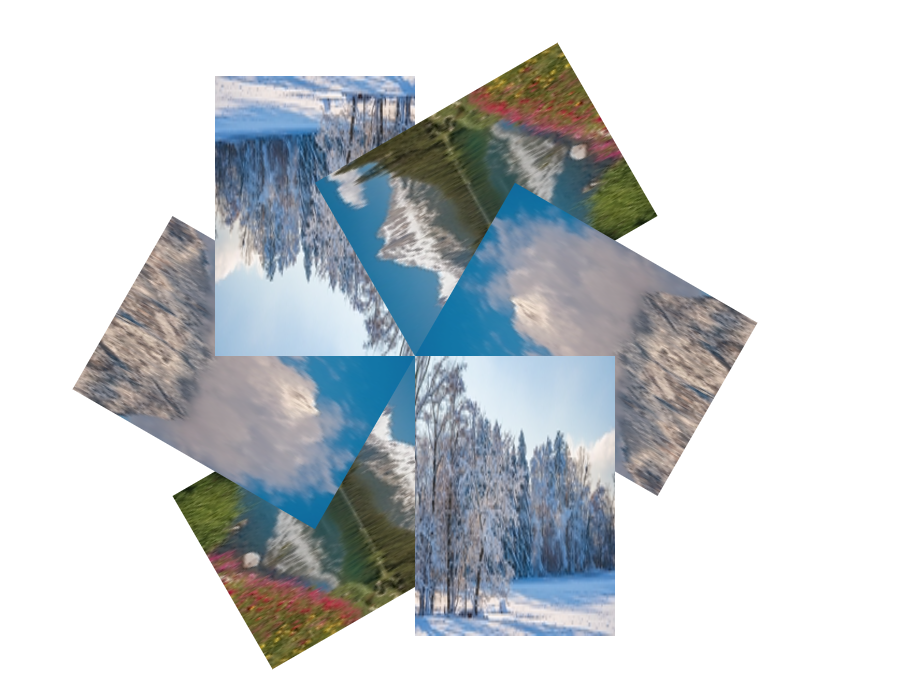
演示:12.mov
<body>
    <ul>
        <li><img src="12.jpg" style="width: 200px; height: 280px;"></li>
        <li><img src="34.jpg" style="width: 200px; height: 280px;"></li>
        <li><img src="56.jpg" style="width: 200px; height: 280px;"></li>
        <li><img src="12.jpg" style="width: 200px; height: 280px;"></li>
        <li><img src="34.jpg" style="width: 200px; height: 280px;"></li>
        <li><img src="56.jpg" style="width: 200px; height: 280px;"></li>
    </ul>
</body><meta charset="utf-8">
<title>两栏自适应</title>
<style type="text/css">
.parent{overflow:hidden;
color:#fff;
}
.leftchild{
float:left;
width:100px;
height:100px;
background:red; }
.rightchild{background:green;
height:100px;
margin-left:100px;
}
.dingweibuju{
position:relative;
}
.dwlchild{width:100px;
height:100px;
background:blue;
position:absolute;
}
.dwrchild{
height:100px;
background:yellow;
margin-left:100px; }
</style> <!-- 浮动布局实现两栏自适应 -->
<div class="parent">
<div class="leftchild">222</div>
<div class="rightchild">我是自适应布局我是自适应布局我是自适应布局我是自适应布局我是自适应布局我是自适应布局我是自适应布局我是自适应布局我是自适应布局我是自适应布局我是自适应布局我是自适应布局我是自适应布局我是自适应布局我是自适应布局我是自适应布局我是自适应布局我是自适应布局我是自适应布局</div>
</div>
<!-- 浮动布局实现两栏自适应 -->
<div class="dingweibuju">
<div class="dwlchild">1111</div>
<div class="dwrchild">我是自适应布局我是自适应布局我是自适应布局我是自适应布局我是自适应布局我是自适应布局我是自适应布局我是自适应布局我是自适应布局我是自适应布局我是自适应布局我是自适应布局我是自适应布局我是自适应布局我是自适应布局我是自适应布局我是自适应布局我是自适应布局我是自适应布局</div>
</div><!DOCTYPE html>
<head>
    <meta charset="utf-8">
    <title></title>
    <style type="">
        .dd{
            overflow:hidden;
        }
        .left{
            float: left;
            width: 200px;
            height:100px;
            background:red;
        }
        .right{
            width:200px;
            height:100px;
            background: green;
            float:right;
        }
        .main{
            margin-right: 200px;
            margin-left: 200px;
            height:100px;
            background: blue;
        }
        .dw{position: relative;}
        .dwleft{
            position: absolute;
            left: 0;
            width: 100px;
            height: 100px;
            background: greenyellow;
        }
        .dwright{
            position: absolute;
            right: 0;
            width: 100px;
            height: 100px;
            background: gray;
        }
        .dwmain{
            margin-left: 100px;
            margin-right: 100px;
            height: 100px;
            background: rebeccapurple;
        }
    </style>
</head>
<body>
    <div class="dd">
        <div class="left">222</div>
        <div class="right">我是自适应布局我是自适应布局我是自适应布局我是自适应布局</div>
        <div class="main">我是自适应布局我是自适应布局我是自适应布局我是自适应布局</div>
    </div>

    <div class="dw">
        <div class="dwleft">111</div>
        <div class="dwright">我是自适应布局我是自适应布局我是自适应布局我是自适应布局</div>
        <div class="dwmain">我是自适应布局我是自适应布局我是自适应布局我是自适应布局我是自适应布局我是自适应布局我是自适应布局</div>
    </div>
</body>
2.png
演示: [1]: /usr/uploads/2023/11/1818980144.mp4
]]> <!DOCTYPE html>
<meta charset="utf-8">
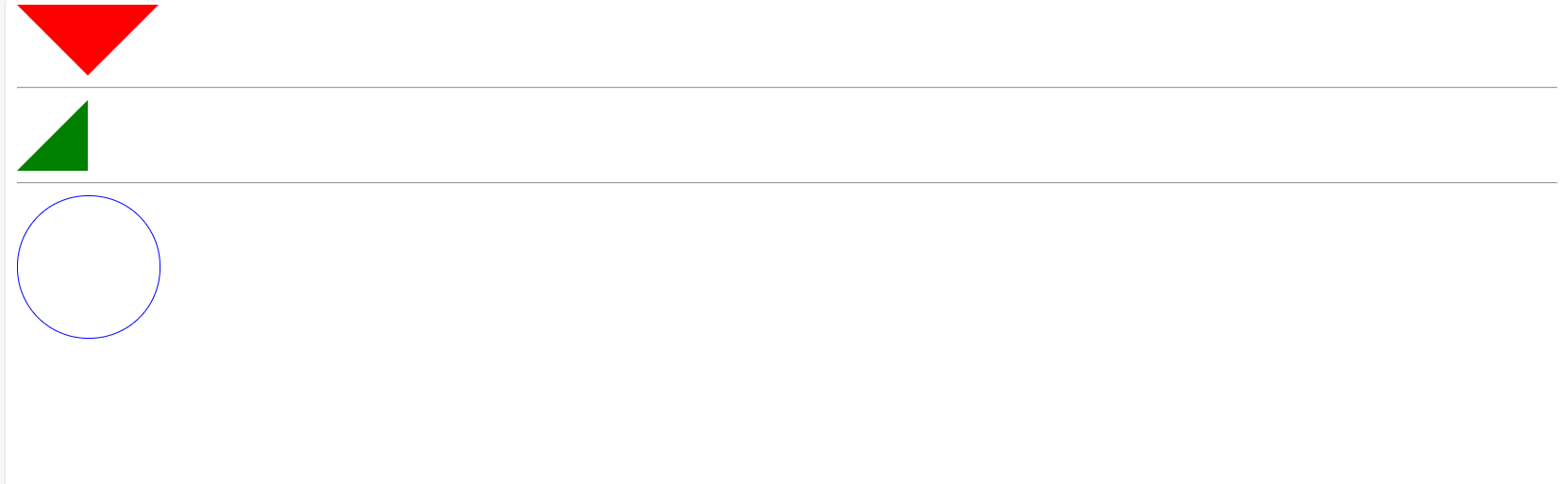
<title>三角形</title>
<style type="text/css">
/*等边三角形*/
.sjx{
width:0;
height:0;
border-top:50px solid red;
border-right:50px solid transparent;
border-bottom:0 solid transparent;
border-left:50px solid transparent;
}
.dyzj{
width:0;
height:0;
border-top:0 solid transparent;
border-right:0 solid transparent;
border-bottom:50px solid green;
border-left:50px solid transparent;
}
.yuan{
width:100px;
height:100px;
border:1px solid blue;
border-radius:50px;}
</style> <!--等边三角形-->
<div class="sjx"></div>
<hr/>
<!--等腰直角三角形-->
<div class="dyzj"></div>
<hr/>
<!--圆-->
<div class="yuan"></div>