import numpy as np
import matplotlib.pyplot as plt
import seaborn as sns
from reportlab.lib.pagesizes import letter
from reportlab.pdfgen import canvas
- 数据模拟生成 (1000条数据)*
roads = ['A路', 'B路', 'C路', 'D路', 'E路']
times = ['08:00-10:00', '17:00-19:00']
dates = pd.date_range(start='2024-01-01', periods=30, freq='D') # 模拟30天的数据
- 数据模拟生成 (1000条数据)*
随机生成数据*
data = []
for date in dates:
for time in times:for road in roads: num_vehicles = np.random.randint(100, 500) # 车辆数目 signal_cycle = np.random.randint(60, 120) # 信号灯周期 avg_speed = np.random.randint(30, 60) # 平均车速 accidents = np.random.randint(0, 3) # 交通事故数量 data.append([date, road, time, num_vehicles, signal_cycle, avg_speed, accidents])模拟了一个包含多个道路、多个时段、多个日期的交通数据集。
roads、times 和 dates 定义了数据的维度,而每条记录表示在某个时间段、某个道路上的交通情况。
num_vehicles、signal_cycle、avg_speed 和 accidents 分别模拟了该时段该路段的车辆数量、信号灯周期、平均车速和交通事故数。
- 将数据转换为DataFrame*
df = pd.DataFrame(data, columns=['日期', '道路', '时间段', '车辆数目', '信号灯周期', '平均车速', '交通事故数'])
- 数据清洗*
df = df[df['车辆数目'] > 0]
df = df[df['平均车速'] > 0]
df = df[df['信号灯周期'] > 0]
清洗数据的主要目的是移除无效记录,如 车辆数目、平均车速 或 信号灯周期 为零的情况,确保数据的有效性和合理性。
- 数据清洗*
- 数据分析*
df['交通事故率'] = df['交通事故数'] / df['车辆数目'] # 计算交通事故率
- 数据分析*
road_summary = df.groupby(['日期', '道路', '时间段']).agg({
'车辆数目': 'sum',
'平均车速': 'mean',
'交通事故数': 'sum',
'交通事故率': 'mean'
}).reset_index()
交通事故率:这里计算了每条记录的交通事故率,即 交通事故数 / 车辆数目,这一指标能有效反映事故的频发程度。
聚合数据:按日期、道路和时间段对数据进行分组,并对每个组别进行汇总:
sum:对 车辆数目 和 交通事故数 进行求和。
mean:对 平均车速 和 交通事故率 计算均值。
最终得到的 road_summary DataFrame 包含了按道路、时间段和日期汇总的车流量、车速、事故数等信息。
- 数据可视化*
- 4.1 设置字体(避免中文显示问题)*
plt.rcParams['font.sans-serif'] = ['SimHei'] # 设置支持中文的字体
plt.rcParams['axes.unicode_minus'] = False # 解决负号显示问题
通过设置 plt.rcParams,确保了生成的图表能够正确显示中文字符,同时避免了负号显示问题。
- 4.2 城市主要道路的车流量热力图*
plt.figure(figsize=(10, 6))
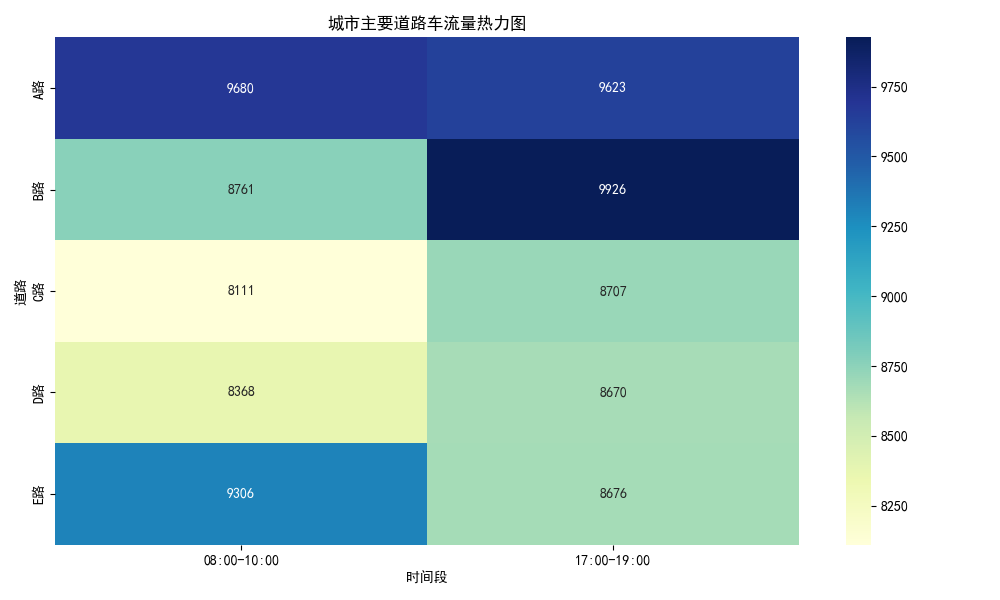
heatmap_data = road_summary.pivot_table(index='道路', columns='时间段', values='车辆数目', aggfunc='sum')
sns.heatmap(heatmap_data, annot=True, cmap='YlGnBu', fmt='d')
plt.title('城市主要道路车流量热力图')
plt.xlabel('时间段')
plt.ylabel('道路')
plt.tight_layout()
plt.savefig('traffic_heatmap.png') # 保存为PNG文件
plt.close()
通过热力图 (heatmap) 展示不同道路和时间段的车流量。
使用 pivot_table 来转化数据,index 是道路,columns 是时间段,values 是车辆数目。
annot=True 表示在每个格子中显示具体数值,cmap='YlGnBu' 选择了颜色映射。
- 4.3 交通高峰时段的车流量趋势图*
plt.figure(figsize=(10, 6))
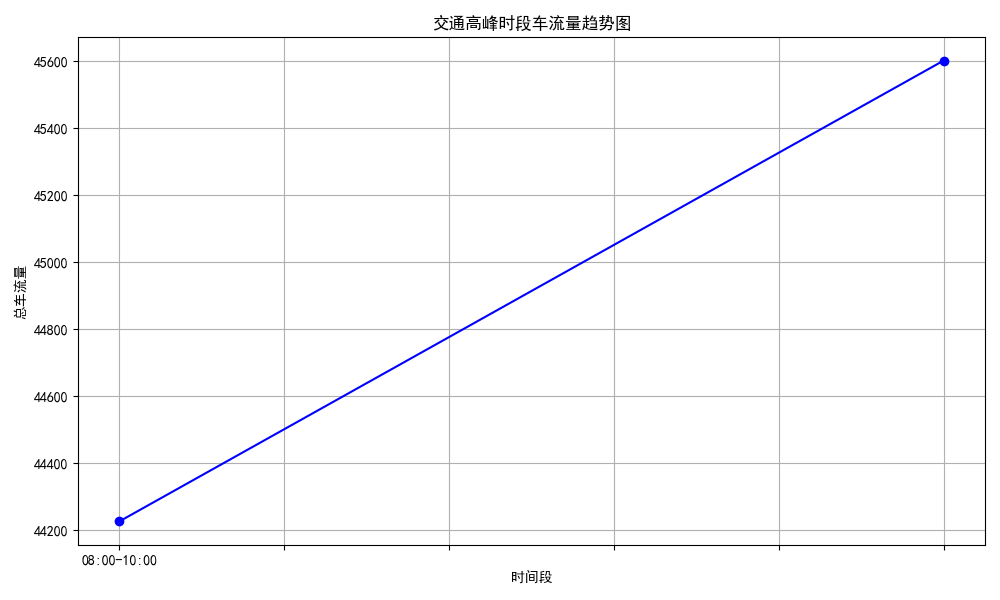
high_traffic = road_summary.groupby(['时间段'])['车辆数目'].sum()
high_traffic.plot(kind='line', marker='o', color='b')
plt.title('交通高峰时段车流量趋势图')
plt.xlabel('时间段')
plt.ylabel('总车流量')
plt.grid(True)
plt.tight_layout()
plt.savefig('traffic_peak_times.png') # 保存为PNG文件
plt.close()
绘制了交通高峰时段的车流量趋势图,以时间段为 X 轴,总车流量为 Y 轴。
通过 groupby 汇总每个时间段的车流量,并绘制折线图。
- 4.4 各道路的事故分布图*
plt.figure(figsize=(10, 6))
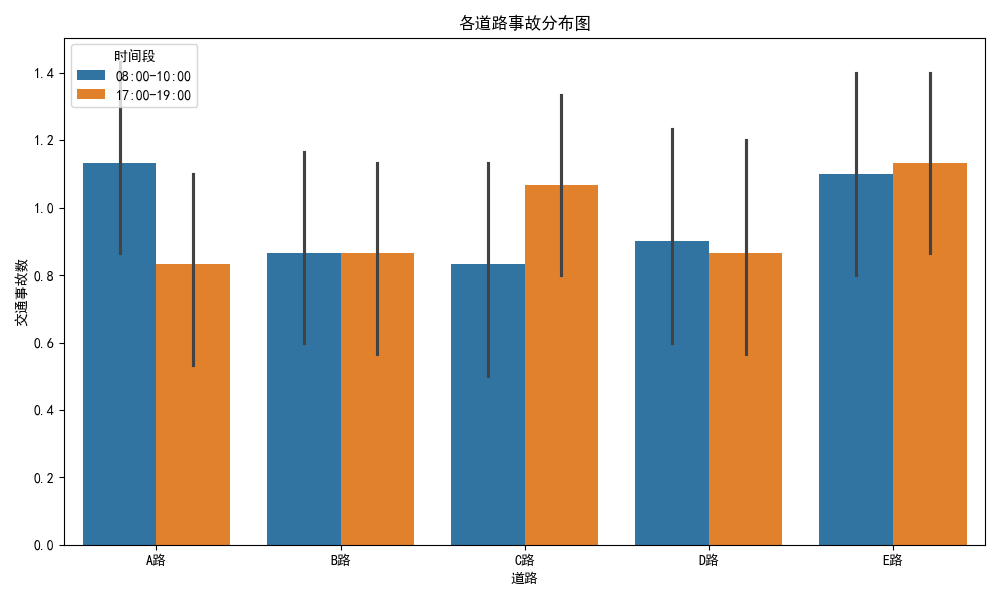
sns.barplot(data=road_summary, x='道路', y='交通事故数', hue='时间段')
plt.title('各道路事故分布图')
plt.xlabel('道路')
plt.ylabel('交通事故数')
plt.tight_layout()
plt.savefig('traffic_accident_distribution.png') # 保存为PNG文件
plt.close()
使用 barplot 绘制每条道路在不同时间段的事故数分布。
通过 hue='时间段' 参数,按时间段分不同颜色。
4.5 信号灯周期与车流量的关系曲线图
plt.figure(figsize=(10, 6))
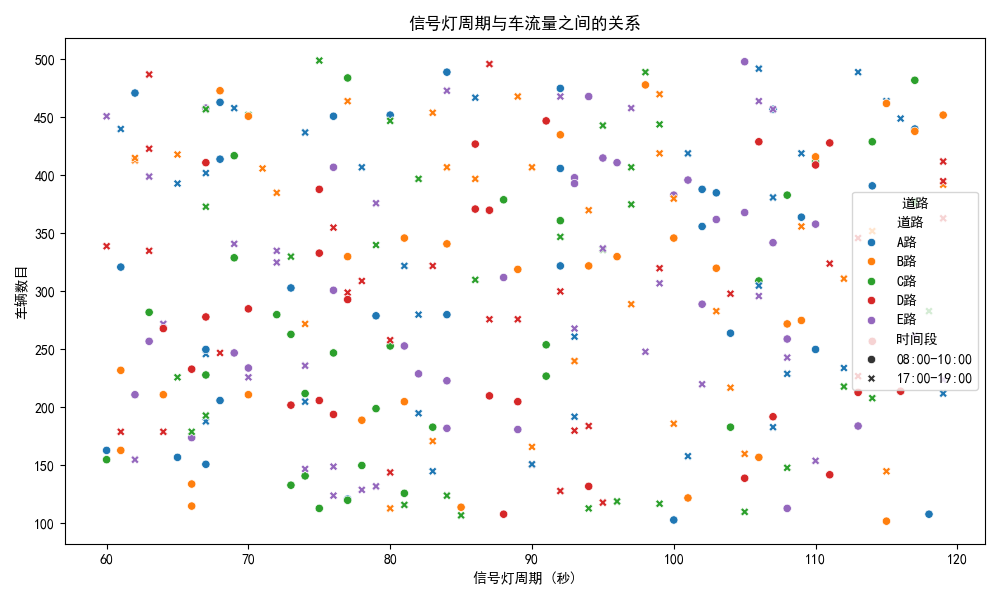
sns.scatterplot(data=df, x='信号灯周期', y='车辆数目', hue='道路', style='时间段')
plt.title('信号灯周期与车流量之间的关系')
plt.xlabel('信号灯周期 (秒)')
plt.ylabel('车辆数目')
plt.legend(title='道路')
plt.tight_layout()
plt.savefig('signal_cycle_traffic_flow.png') # 保存为PNG文件
plt.close()
绘制了信号灯周期与车辆数目之间的散点图。
每个点代表一个记录,hue='道路' 按道路分色,style='时间段' 按时间段区分点的样式。
- 生成CSV文件*
df.to_csv('traffic_data.csv', index=False, encoding='utf-8')
将生成的数据保存为 CSV 文件,方便后续分析或存档。
- 生成CSV文件*
生成PDF报告*
def generate_pdf_report():
c = canvas.Canvas("analysis_report.pdf", pagesize=letter)
width, height = letter- 设置标题*
c.setFont("Helvetica-Bold", 16)
c.drawString(30, height - 40, "交通数据分析报告") - 添加数据分析过程*
c.setFont("Helvetica", 12)
c.drawString(30, height - 80, "1. 数据生成与清洗:")
c.drawString(30, height - 100, " - 生成了包含交通流量、信号灯周期、车速和事故数等数据。")
c.drawString(30, height - 120, " - 对异常值进行了处理,确保数据质量。")
c.drawString(30, height - 140, "2. 数据分析:")
c.drawString(30, height - 160, " - 按道路和时间段汇总数据,计算了车流量、车速和交通事故率。")
c.drawString(30, height - 180, " - 发现高峰时段和高事故率区域。")c.drawString(30, height - 200, "3. 优化建议:")
c.drawString(30, height - 220, " - 在高流量时段适当延长信号灯周期。")
c.drawString(30, height - 240, " - 在事故高发区域加强交通管理。")- 添加图片(可视化图表)*
c.drawImage("traffic_heatmap.png", 30, height - 450, width=500, height=300)
c.drawImage("traffic_peak_times.png", 30, height - 780, width=500, height=300)
c.drawImage("traffic_accident_distribution.png", 30, height - 1110, width=500, height=300)
c.drawImage("signal_cycle_traffic_flow.png", 30, height - 1440, width=500, height=300) - 关闭并保存PDF*
c.save()
使用 reportlab 库创建了一个 PDF 报告。
报告包含标题、分析过程、优化建议和图表。
图表通过 drawImage 方法嵌入到 PDF 中。
最终报告被保存为 analysis_report.pdf- 设置标题*
generate_pdf_report()
# 7. 提供优化建议
high_accident_areas = road_summary[road_summary['交通事故率'] > 0.01]
peak_traffic_times = road_summary[road_summary['车辆数目'] > 400]
print("高风险事故区域(事故率 > 1%):")
print(high_accident_areas[['日期', '道路', '时间段', '交通事故率']])
print("\n高峰时段交通流量:")
print(peak_traffic_times[['日期', '道路', '时间段', '车辆数目']])
根据分析结果,提供了两种优化建议:
高风险事故区域(事故率大于 1%),需要加强交通管理。
高峰时段交通流量较大,可能需要调整信号灯周期等交通控制措施。
# 假设建议:在高流量时段适当延长信号灯周期,并且在事故高发区域加强交通管理。



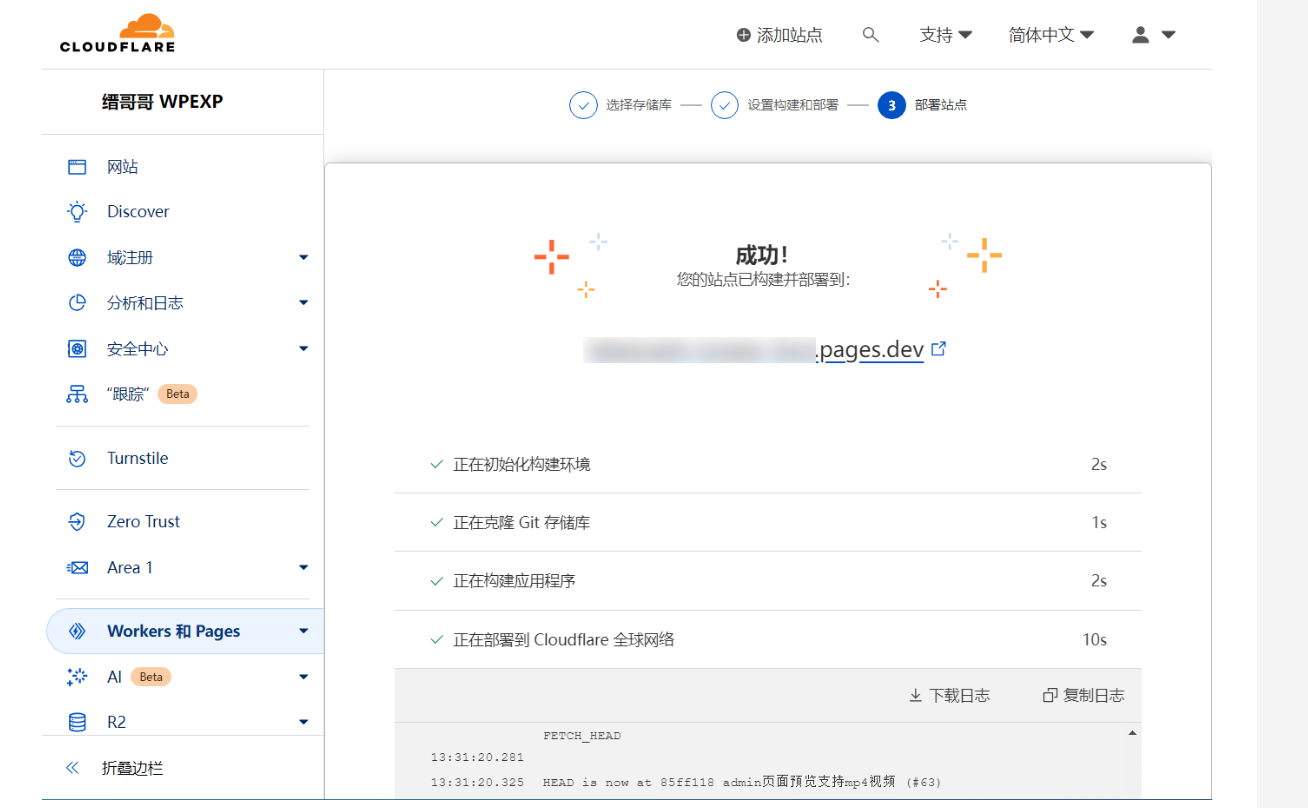
 我这里已经创建了一个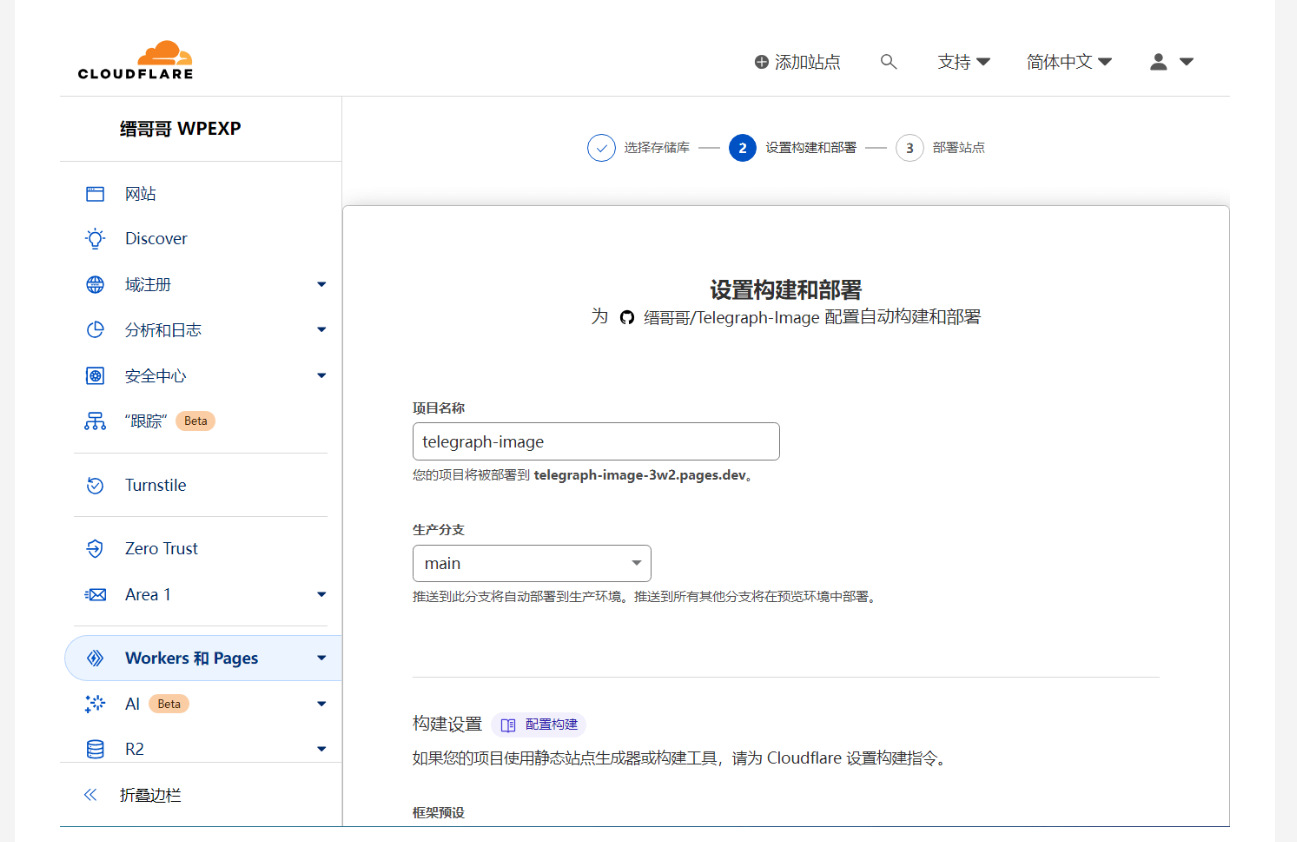

![Y0T<code>Q0R1NBH1FEN__]O</code>UTW.png](/usr/uploads/2024/05/3550106947.png "Y0T<code>Q0R1NBH1FEN__]O</code>UTW.png")